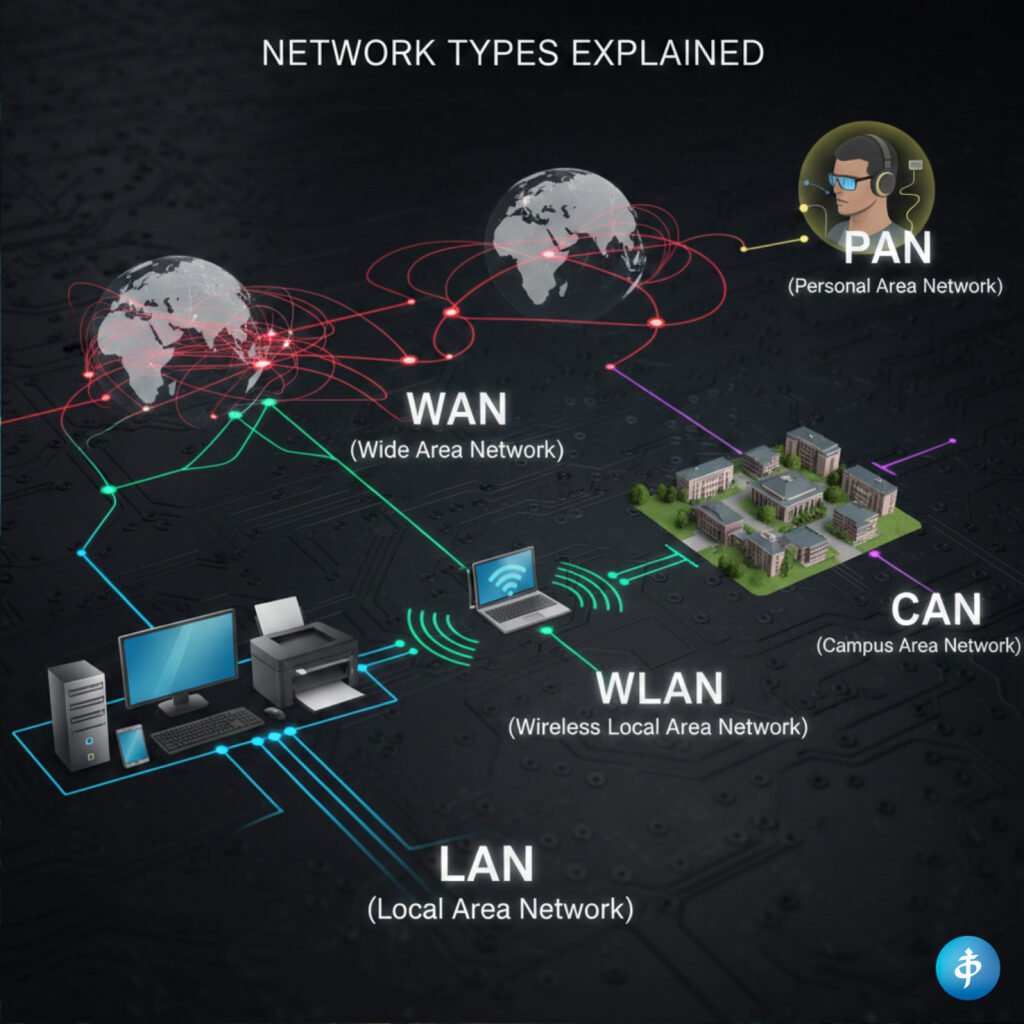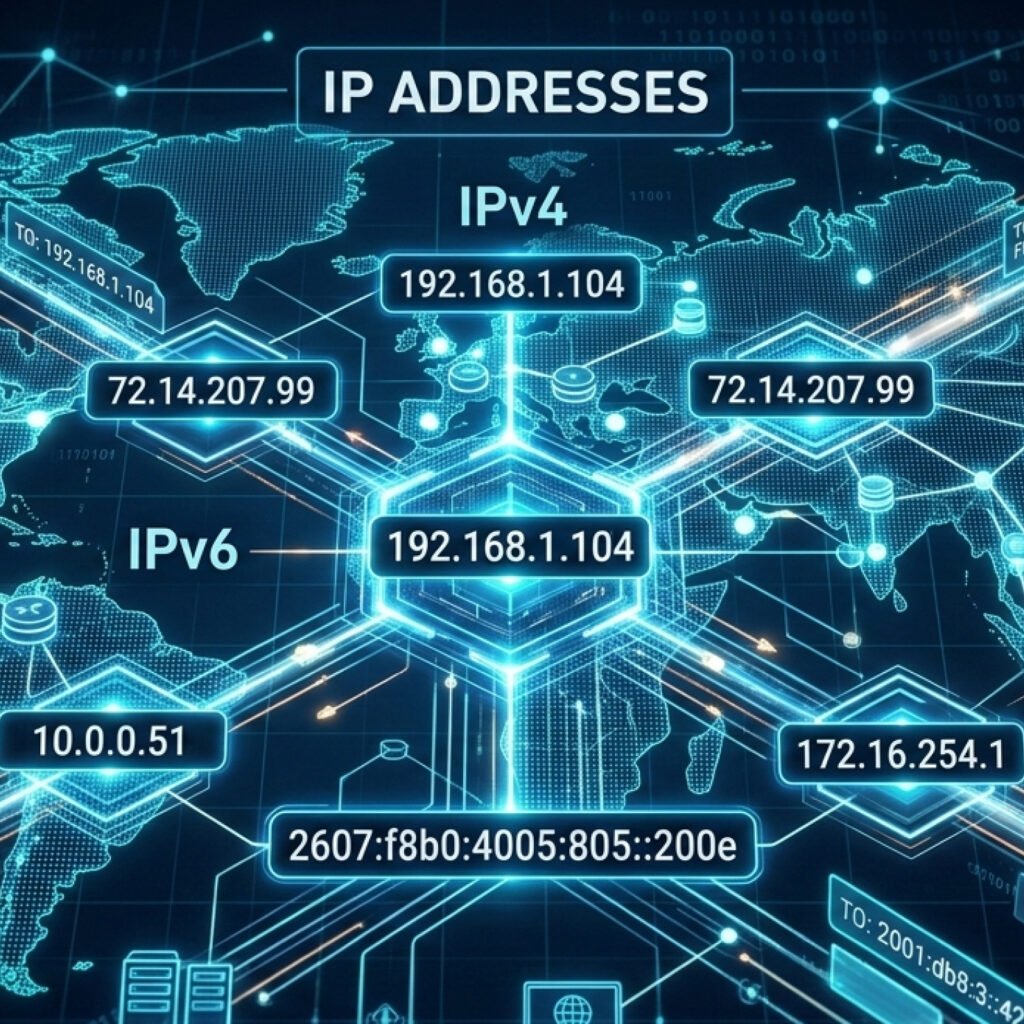
Hello! Last time I explained about TCP/IP and OSI model, so this time I want to show it in a more practical way, how the connection is established in what networking people call it the “three-way handshake”. For that I’m gonna be using Wireshark, a packet sniffer enabling us to see what’s happening with the network. I’m using Kali Linux (same one that I configured previously, check it out here) but you can do it on Windows as well.
The first step is too actually install Wireshark, in case you din’t have it on your machine. For that, go to your terminal and type “sudo apt install wireshark” and hit your password.
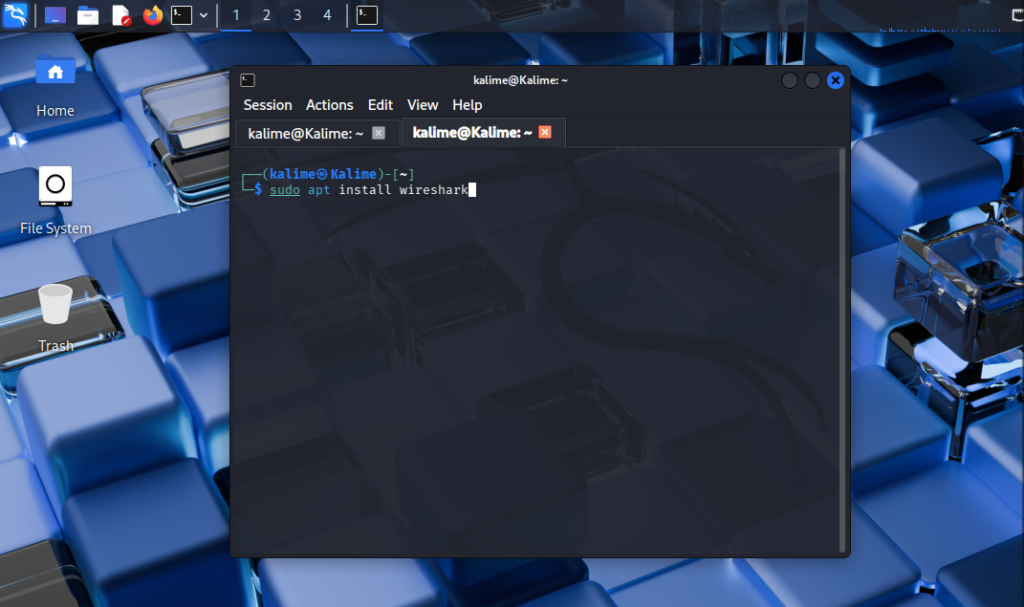
Once the installation is completed, just type “wireshark” on your terminal.
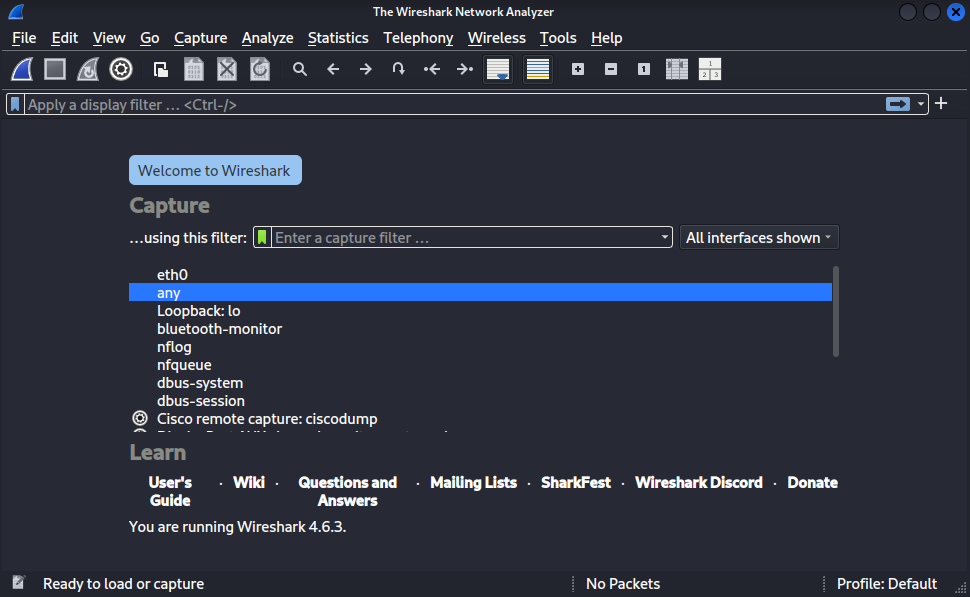
You can select “any” and just start the scan by clicking on the blue shark fin icon on the top. Wireshark is gonna start listening the events on the network.
The next step is to install “ncat“, for us to be able to configure two different IP address as if it was the server and the client to simulate the network communication. Go to you terminal and type “sudo apt install ncat“.
All done? Check your network with “ifconfig” on your terminal, in my case it is “eth0”. Now it’s time to configure the two different IP addresses. You can open a new terminal window and type:
“sudo ifconfig eth0:0 192.168.1.10 netmask 255.255.255.0 up” – For the Client.
Next, open a new terminal window again and type:
“sudo ifconfig eth0:1 192.168.1.20 netmask 255.255.255.0 up“. That’s our Server.
Pay attention to if you typed it correctly.
Now, with the IP addresses configured you can clean ter terminal and in one window type:
“ncat -l 4444“.
In another window put:
“ncat 192.168.1.20 4444“.
Once it’s done, the network is open and on Client side (IP final – .10) write a message: “Hello World!” and hit Enter.
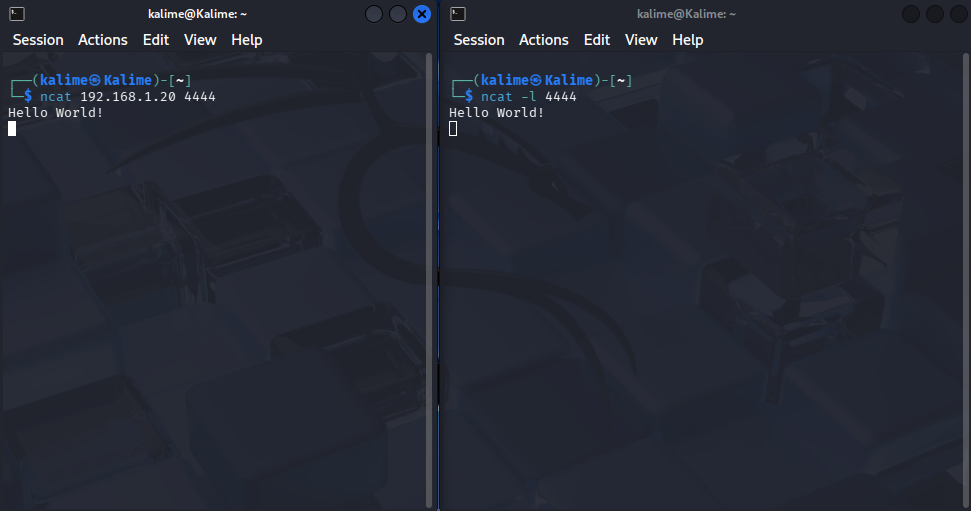
The message is gonna appear on th server side as well (cool innit?).
Let’s go to Wireshark and see what is happening.
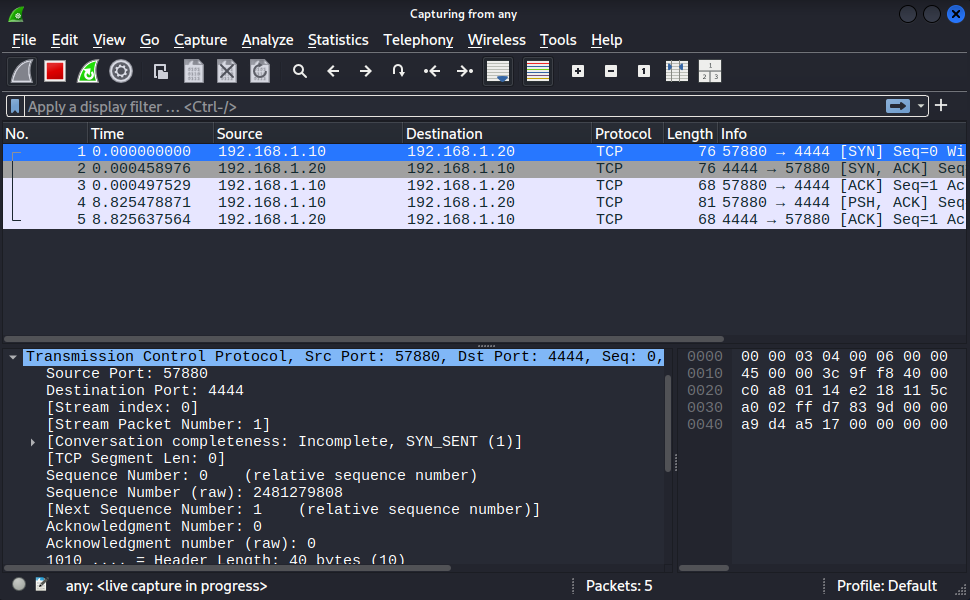
There are interesting information here:
Source Port: 57880 – which is usually a random big number generated.
Destination Port: 4444 – The one we chose with ncat: ncat -l 4444.
As we are in the first step known by SYN, because the Client and Server in this case needs to Synchronyse the number of sequencies they will share. The sequence number (raw) is actually a huge number randomly generated (generally based on the OS) to tell the other side like “hey, let’s start counting by this number”, but Wireshark give us a “relative sequence number” to facilitate the understanding, it’s basically saying, let’s call it 0. So, the next sequence number it’s shown to be 1.
In the Info tap you can see the Three-way handshake in action:
| Step | Info | Description |
| 1 | [SYN] | Client asks to connect. |
| 2 | [SYN, ACK] | Server agrees and acknowledges. |
| 3 | [ACK] | Client acknowledges the agreement (Handshake complete). |
| 4 | PSH, ACK | This is your actual data (the “Hello” message) being “pushed.” |
The Client sends a message for the SYN and the Server replies with the SYN , ACK. That means the server heard you and added 1 to the sequence number in order for you to know that you were listened. You can check Infos by the Flags information as well.
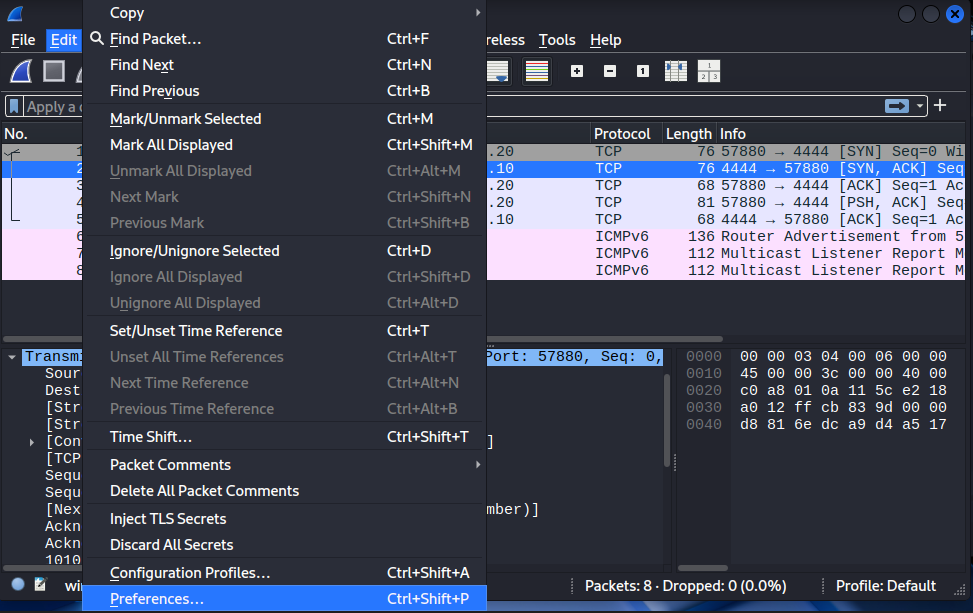
Another thing very interesting to do, is adding a Delta Column to your Wireshark scan. For that go to Edit > Preferences:
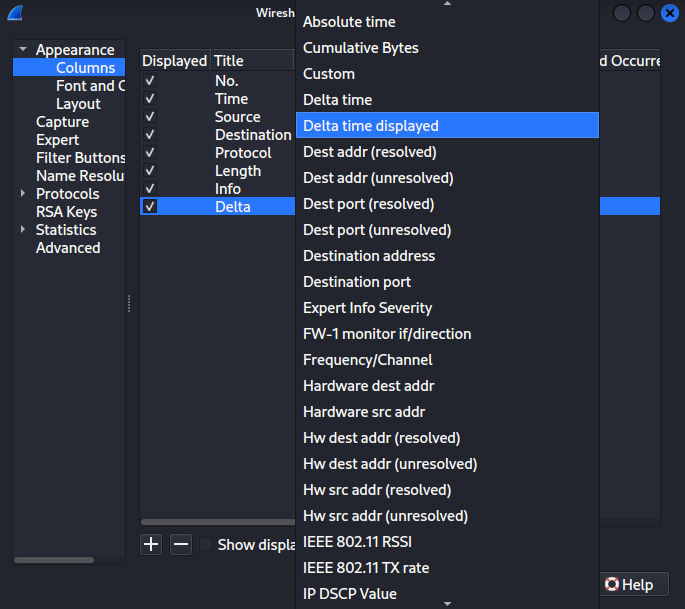
Then go to Columns > + add new Column:
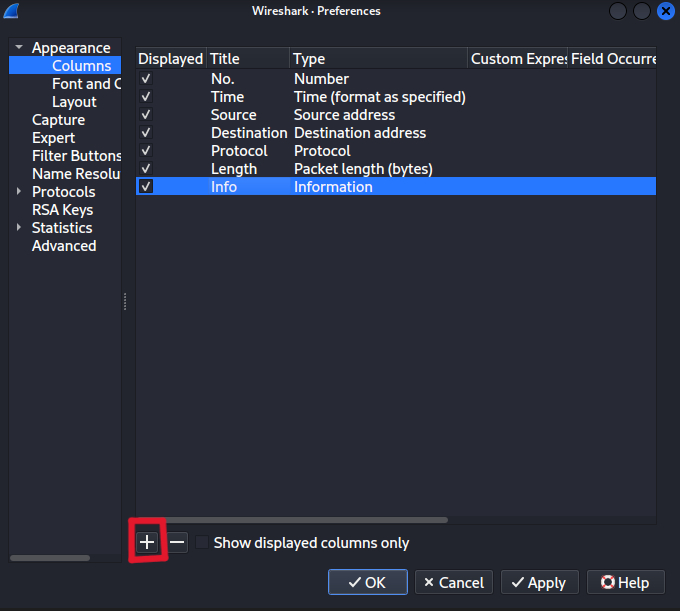
Rename it to “Delta” and at the Type click on the dropdown menu and choose “Delta time displayed”. You can also re-arrange the columns just dragging it, as I did.
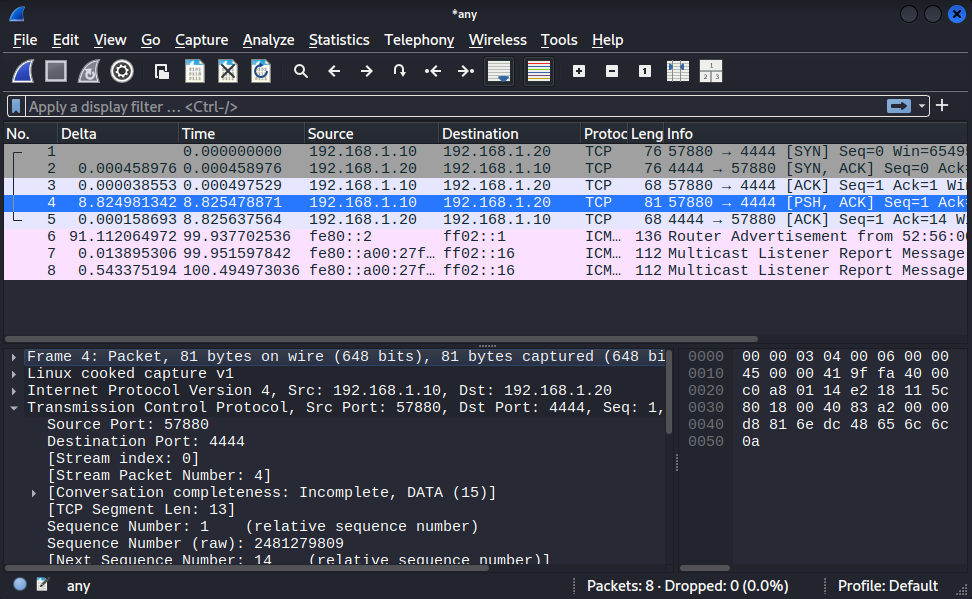
This Delta is ussed for networking and very common for game developers to check the time elapsed since the last frame was rendered or the last network packet was processed, that’s were comes the delays and lags. In the image you can see that it went goes from 0.00038553 to 8.824981342, in this scenario it is getting the time I spent typing the “Hello World!” message, since the connection was open during this process. With Delta you can also check if the server is quite distant, like in another continent or actually close to you.
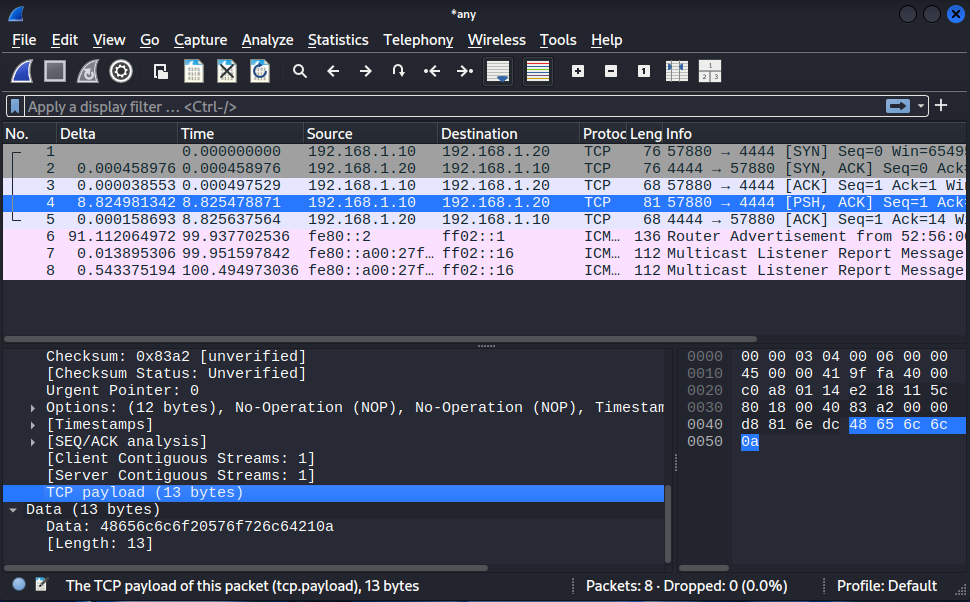
If we scroll down to the “Data”, you can check the payload of 13 bytes or “Length: 13”, that’s exactly the digits for “Hello World!” remembering there’s always one character more that is hidden to mark the end of the string. It’s called “null character” or “null terminator” represented by “\0“.
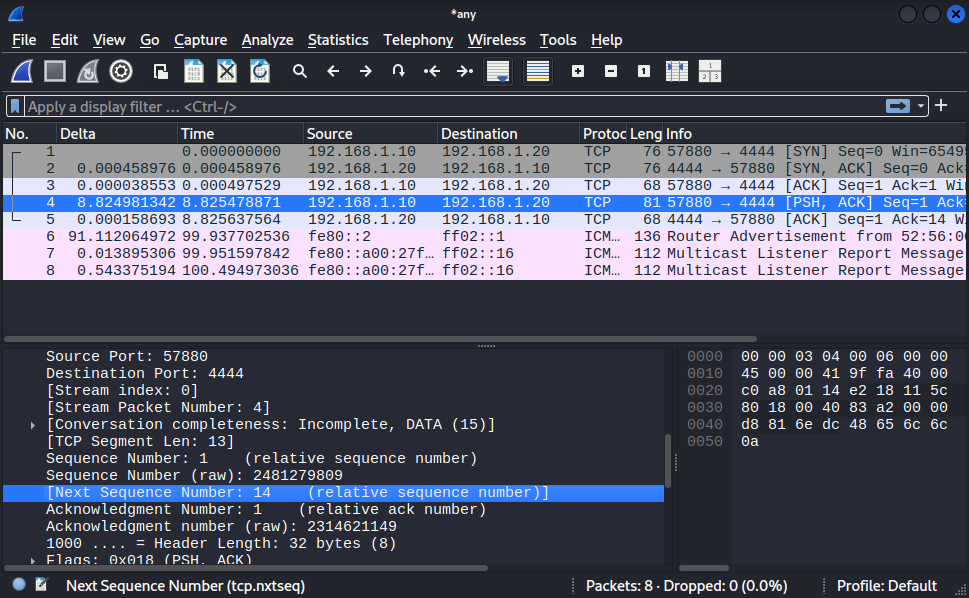
Also we can check that the Next Sequence Number jumps from 1 to 14. The reason is because we sent our 13 bytes message and the sequence needs to add these bytes acknowledging its receiving and starting from the last packet received.
We can also check the Time To Live (TTL) in the “Internet Protocol Version” section. It refers to the limit of paths that the packet can go across the network to avoid that it keeps looping forever. Common starting values are 64, 128 and 255. If a TTL remains stable that a sign of a good connection, stable or symmetric path between the devices. Every time a packet pass through a router the TTL decrements by 1 and when it hits zero the router drops the packet and sends an Internet Control Message Protocol (ICMP) “Time Exceeded” message back to the sender. If you are in a LAN with two devices connected without touching the router the TTL is gonna remain the same.
Here are some common references for the TTL value:
| Starting TTL | Common Operating System |
| 64 | Linux, FreeBSD, macOS, iOS, Android |
| 128 | Windows (XP, 7, 10, 11, Server) |
| 255 | Cisco Routers / Solaris |
You should be worried if the TTL changes significantly during the session. It can be:
Route Flapping: The network is unstable, and packets are taking different paths to reach you;
Load Balancing: A firewall or load balancer is switching your connection between different backend servers;
Spoofing: Someone is injecting packets into your stream from a different location to hijack the connection.
The journey of a packet can be measured in “hops“, that are steps that a packet takes to reach its target. Every time a packet hits a gateway the TTL decrements by 1, so if it arrives at the destination with a 58 TTL that started by 64, we can infer that the destination is at 6 hops away.
Now, let’s jump to another important field that is TCP Flags. We are gonna check each step of the Three-way handshake and see how the 0s change into 1s depending on the stage of the connection process:
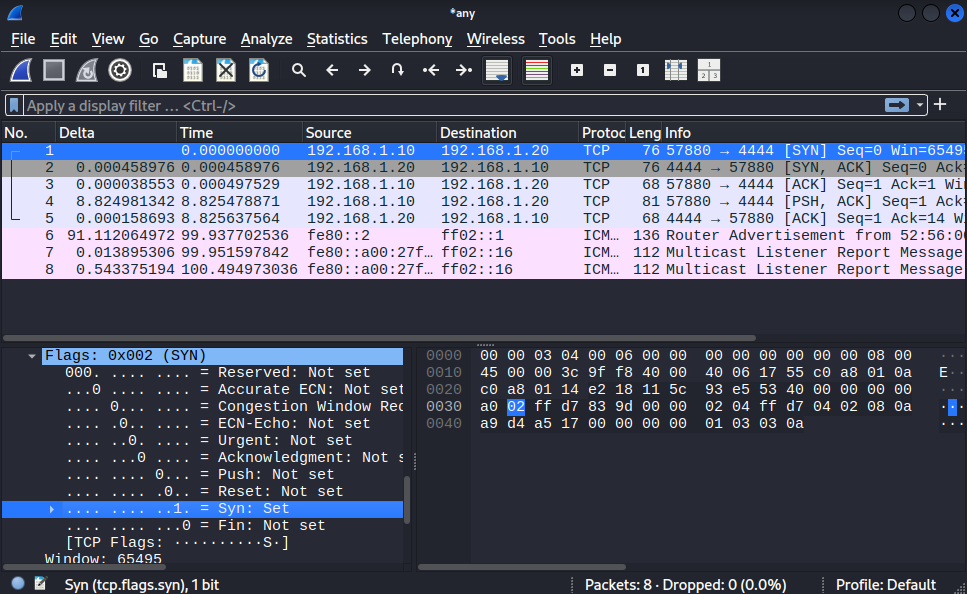
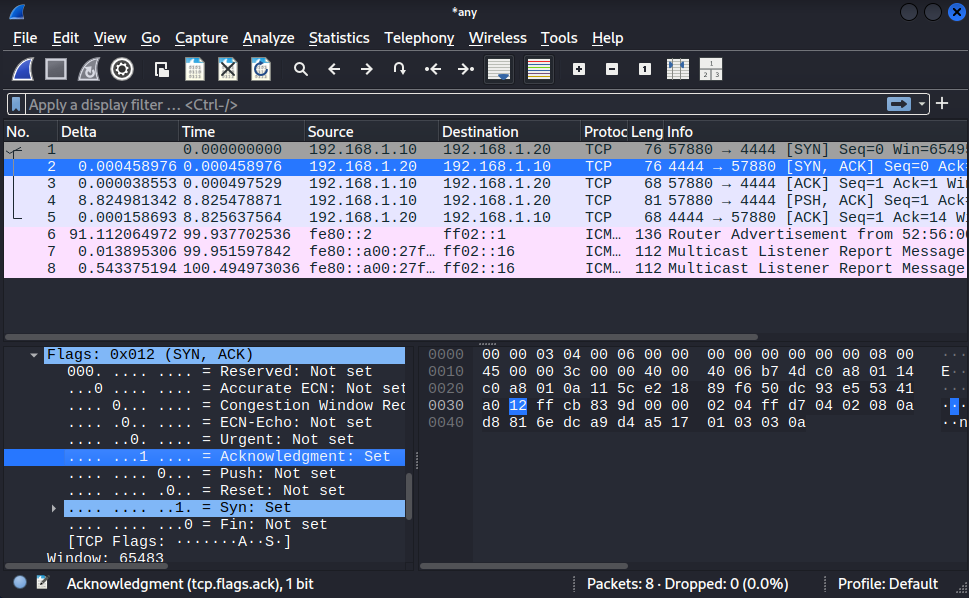
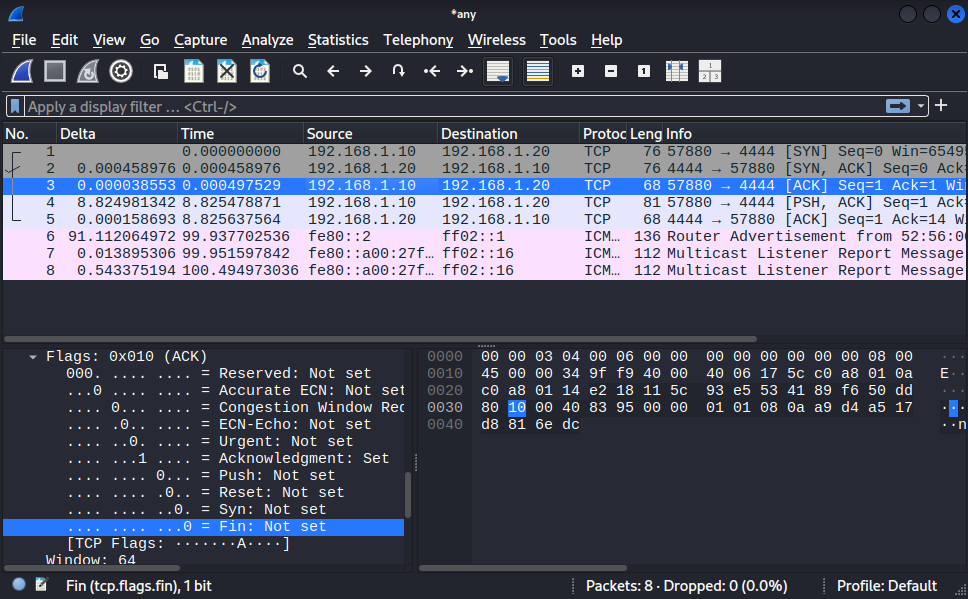
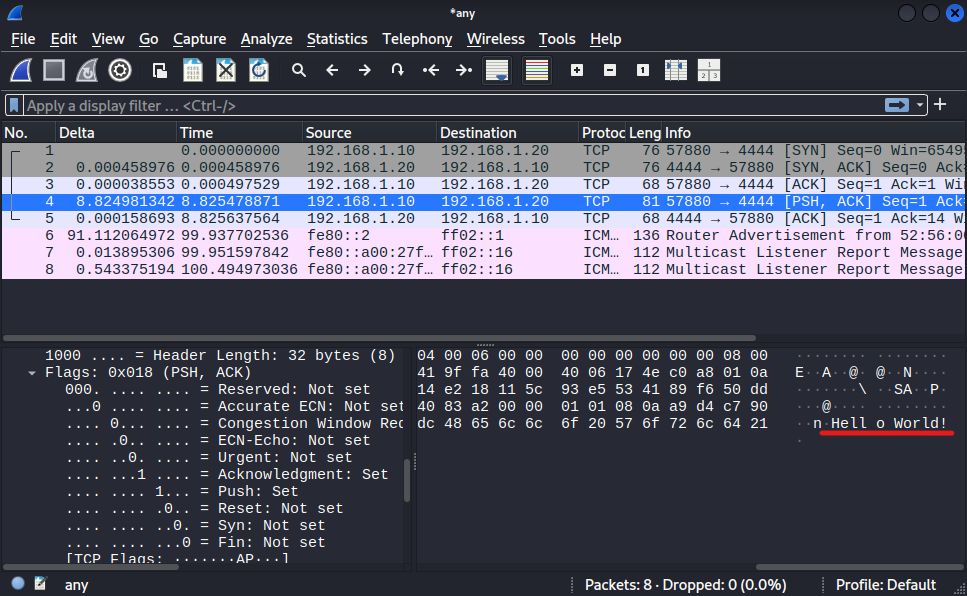
Here at the “PSH, ACK” we can see our message appearing.
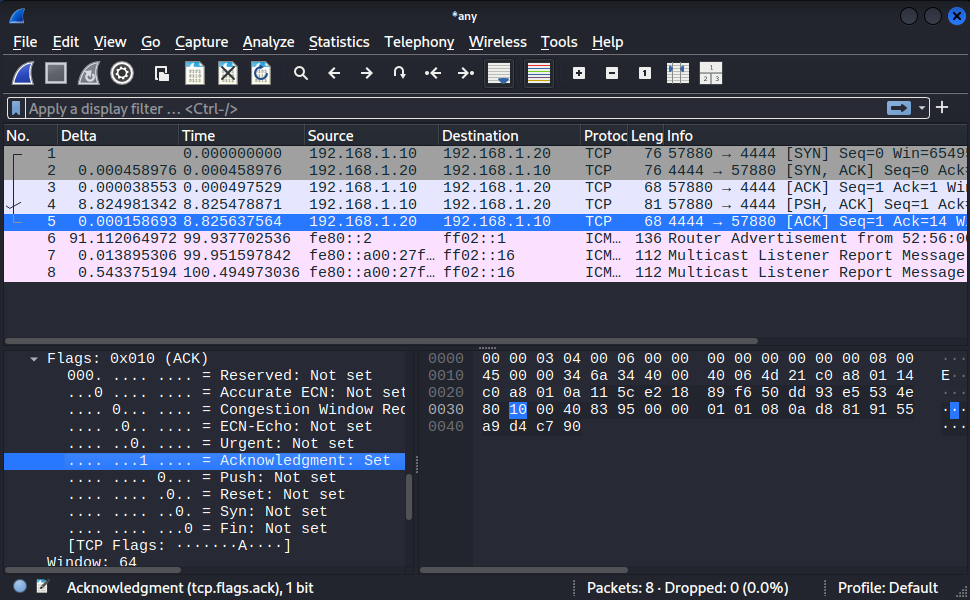
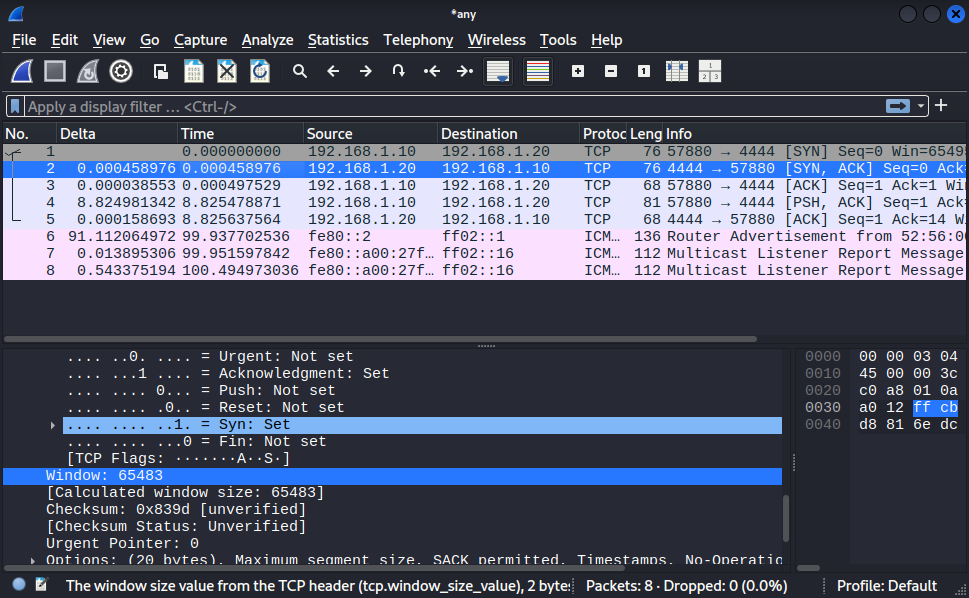
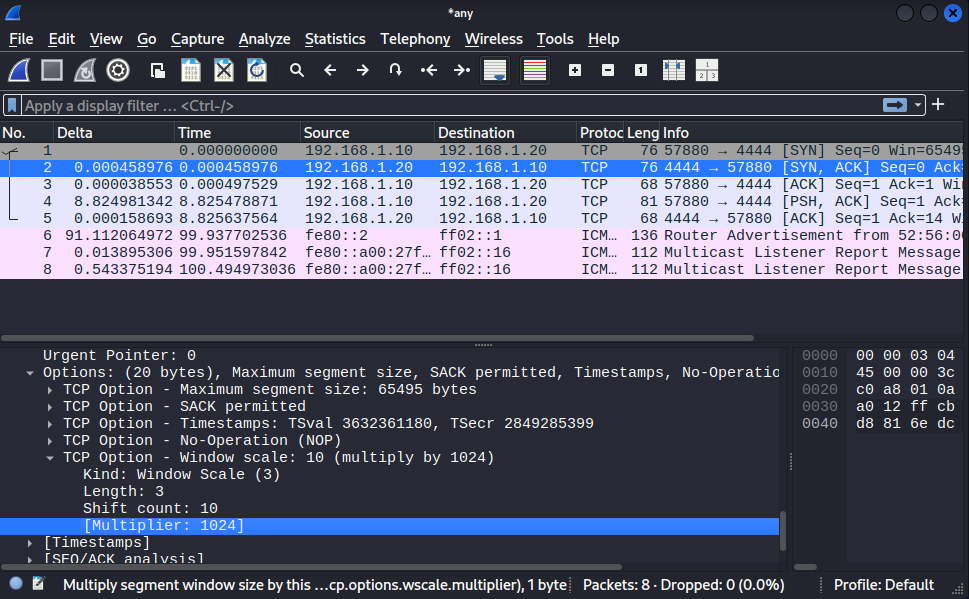
The TCP Window refers to how much data I can receive at once, but let’s agree that 65483 is not enough for every situaton, so it can cause a bottleneck. To solve it TCP introduced a TCP Option: “Window scale” that can actually multiply your capacity to receive data. In our case here it can be multiplied by 1024, and that a huge difference. Check out the image below:
With all that information we can say that TCP is reliable, because it checks if the packets were sent without error and in the correct order, diferent than UDP, that is another protocol that prioritise the receiving as quickly as possible without caring to deliver every packet or in some specific order. It’s used for livestreams and gaming for example.
/// That’s it for now (x_x)