
Hello guys!
Today I’m gonna share with you my process of getting start using Kali Linux through a Virtual Machine, in this case I’m using VirtualBox, but you can use the VM you want. There are other options like VMWare and HyperV.
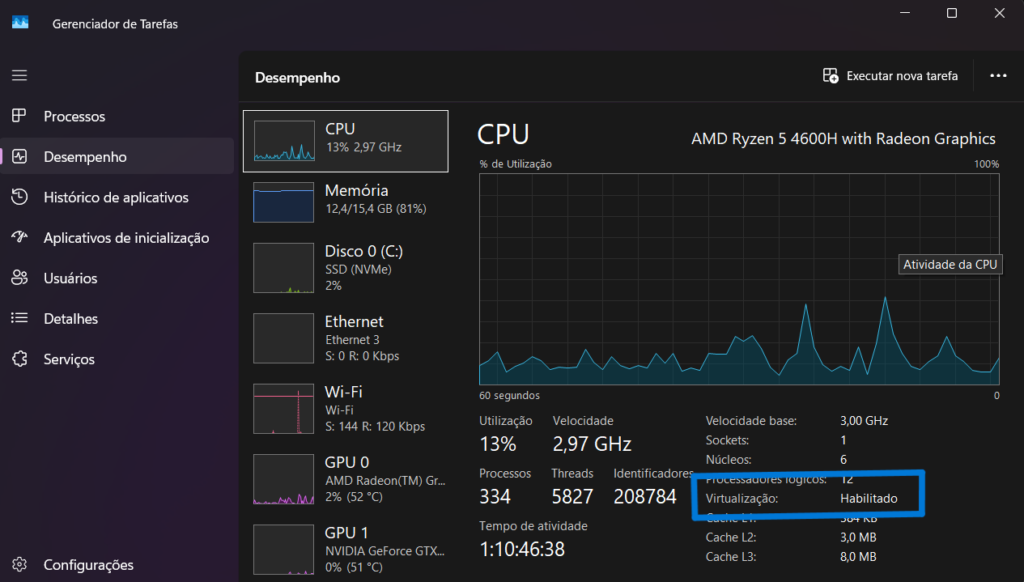
So, the first thing you need to do is downloading VirtualBox through the website: “https://www.virtualbox.org/wiki/Downloads“; and installing it on your computer. The second step is checking if “Virtualisation” is allowed on your computer. In my case, I’m using Windows 11, so we can start by opening the “Task Manager”, by right clicking the Windows Task Bar at the bottom of your screen or using “ctrl + alt + del”.
Once opened, go to “Performance” tab > CPU. At the bottom of the window you can see “Virtualisation”, chck if it’s enabled, if it is disabled, you need to access the BIOS of your OS by restart your computer holding the “Shift” key. At the BIOS screen search for Troubleshoot > Advanced Options > Firmware Settings, or something related because it will vary depending on your computer, mine is an AMD. Find a SWM or AMDV option and make it “Enabled”, then save the changes and just reboot your system normally. If you are using an Intel, try searching for “Intel Virtualisation” or “VT-x”, something like that.
After all this process done, check again on your “Task Manager” and see if the Virtualisation is there. I’m using a computer in PT-BR, so the image is probably showing a different language than yours, but the path is the same.
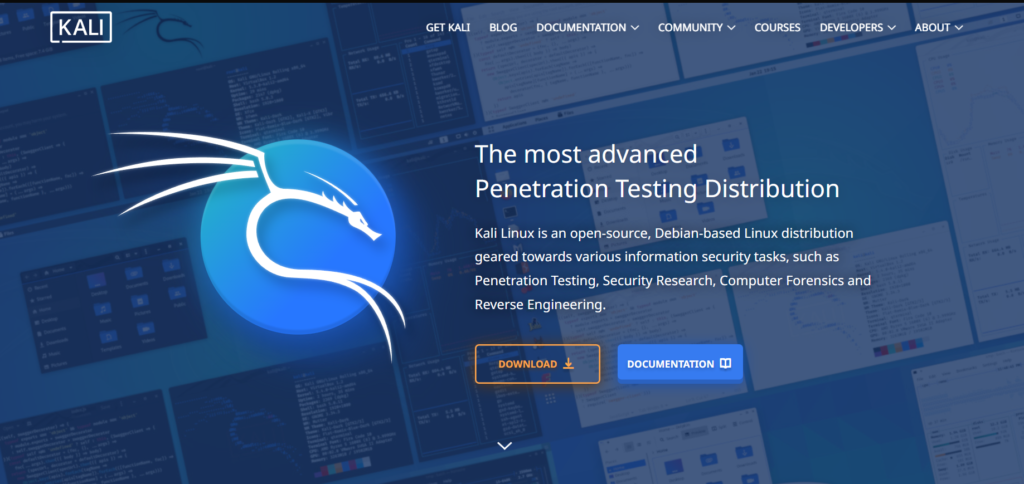
With all this done, we need going to Kali website: kali.org and click on the “Download” button and once redirected, choose “Installer Images” and download the option that fits best for you or you can just pick the “recommended” one. You can check out the step-by-step on the screeshots below:
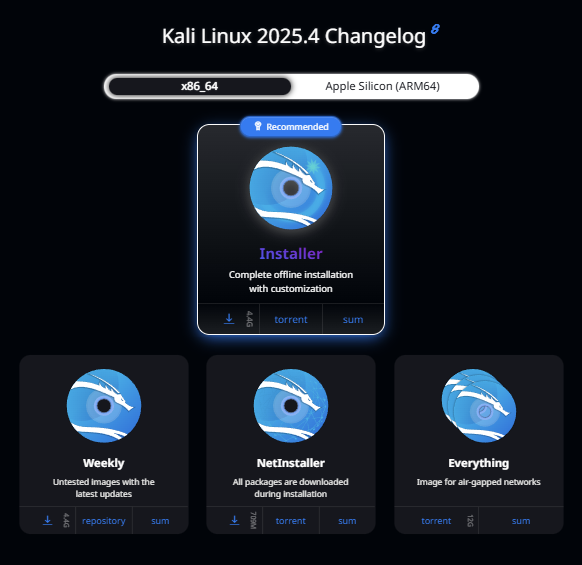
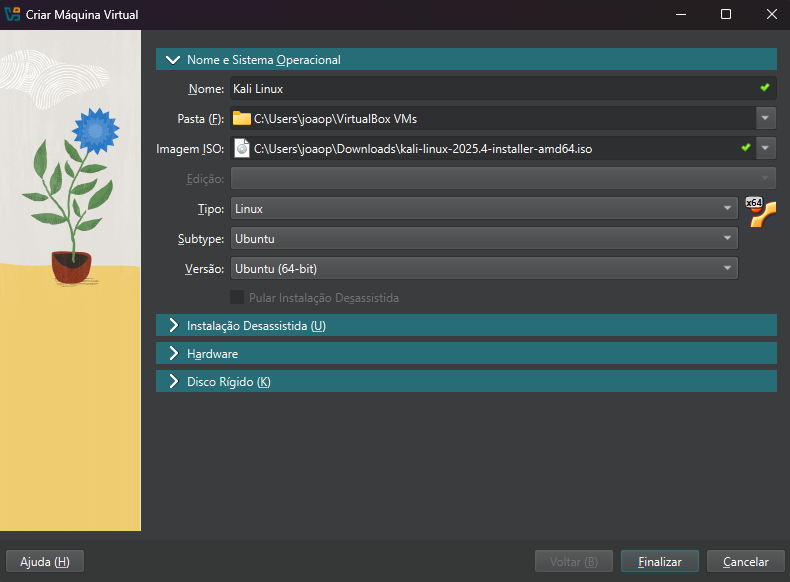
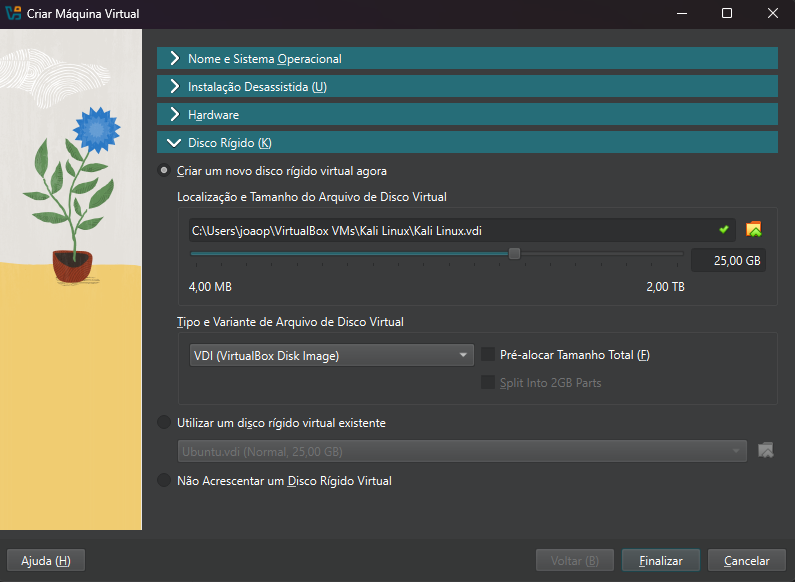
After the download is complete, open the VirtualBox, click on “New” the blue icon, give you VM a name and select a folder. The next dropdown option is for the ISO image, remember to unzip the Kali dowload folder and it might appear on the dropdown for you to select.
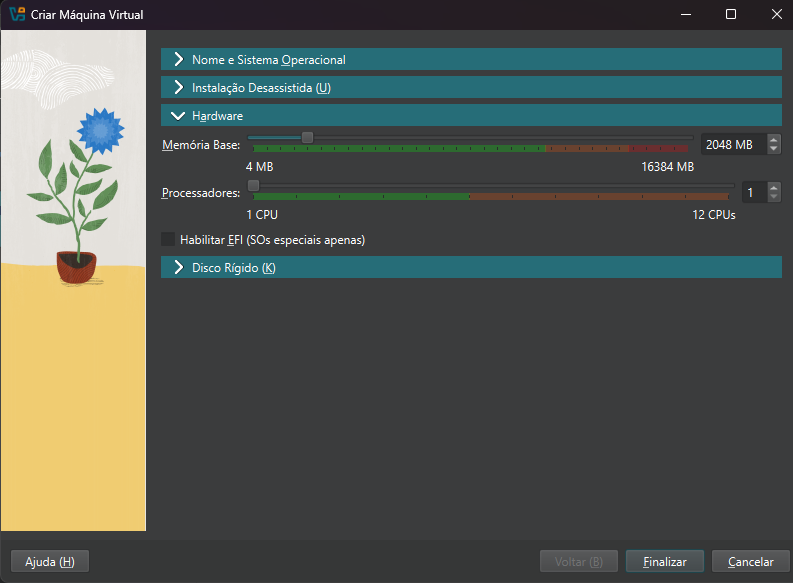
On “Hardware” you need to allocate RAM memory and CPU that will be shared with your main system, you don’t need much resources, so try allocating something like 20% or 25% and it might be enough, you can adjust it later if necessary. You can check it on the screenshots below:

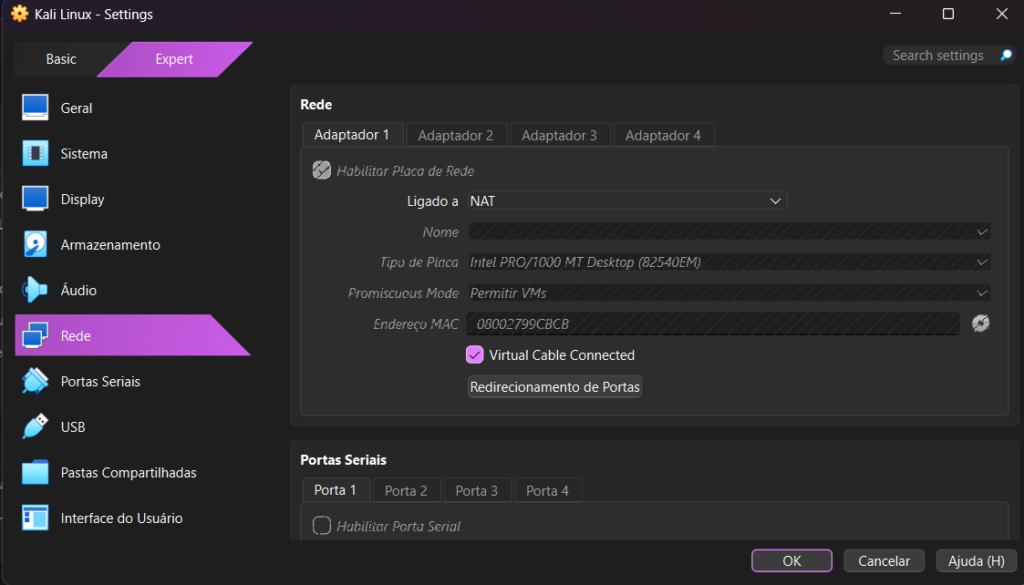
Once created the VM, go to Settings > Network and choose the option NAT because VMs only undertands Ethernet connection by default, so in order to connect using Wi-Fi you need to make some networking changes afterwards. So in VirtualBox I think it works better for a first approach, as I tried other times with different settings and I have some trouble to connect to the internet.

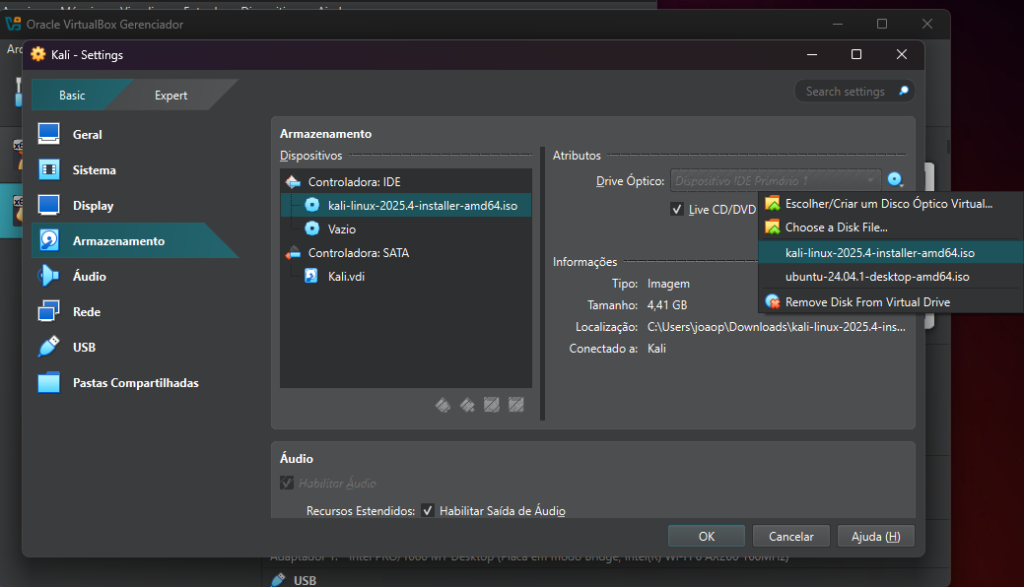
To make sure it’s gonna work, go to “Storage” and on the IDE remember to set the drive (“CD” icon on the right side) to your ISO image, that you downloaded previously.
All set? You can click on the Start button represented by a green right arrow, it’s the last icon on the top. A new window is gonna open, that represents the Virtual Machine where you can explore the Kali Linux as another OS inside your own main system, such as Windows or MacOS.

You can choose “Install”, and follow the steps to configure language, location and network.
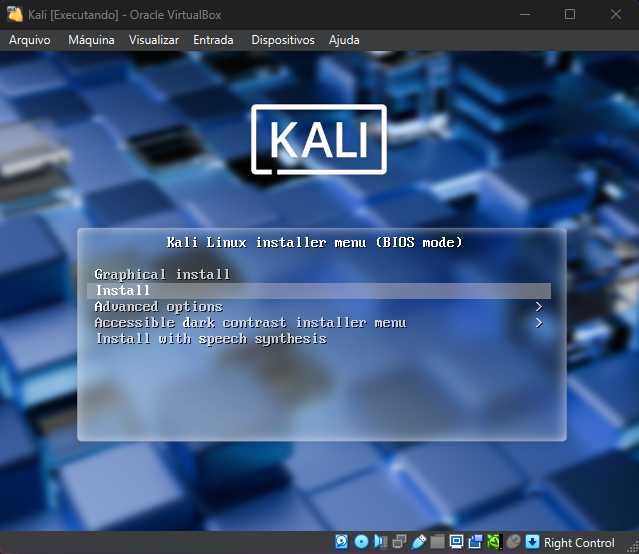
Keep configuring the account and disk configuration
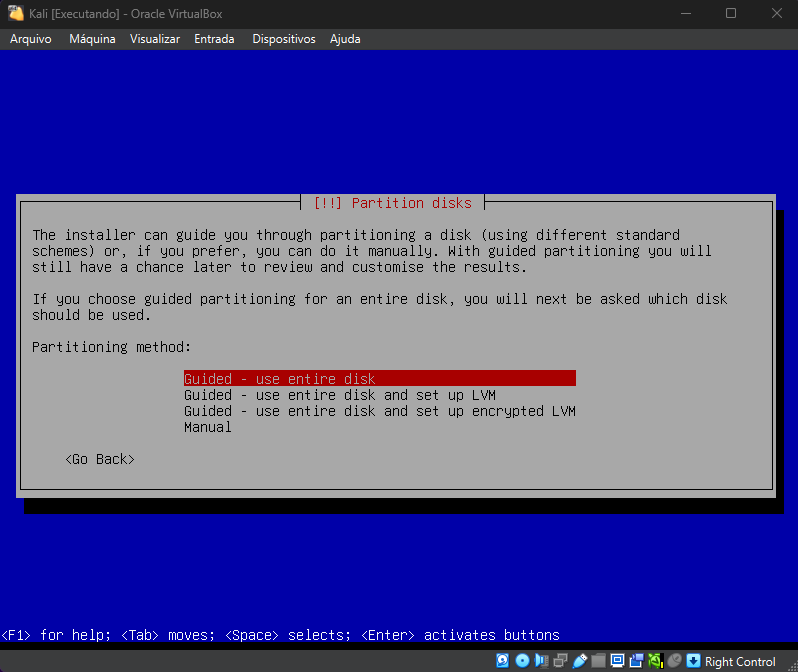
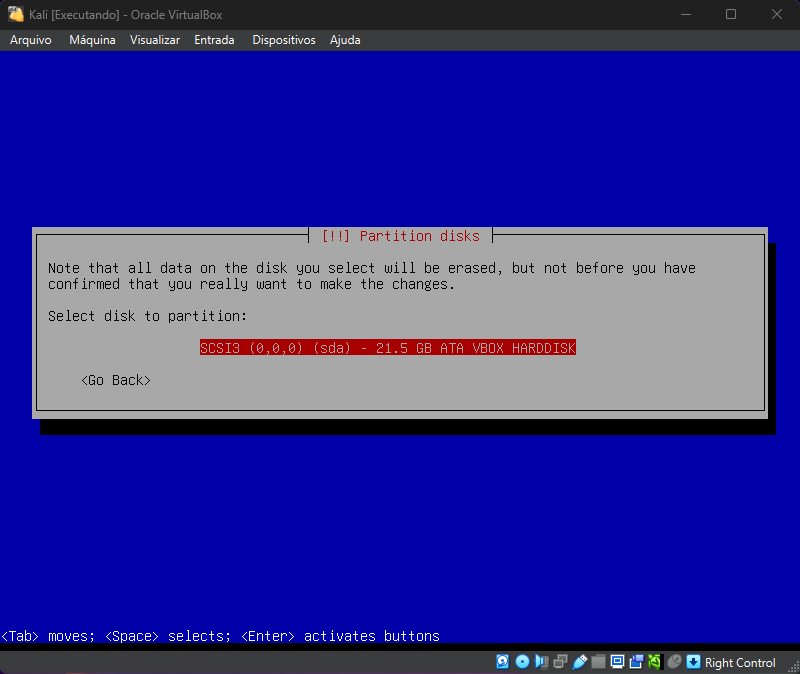
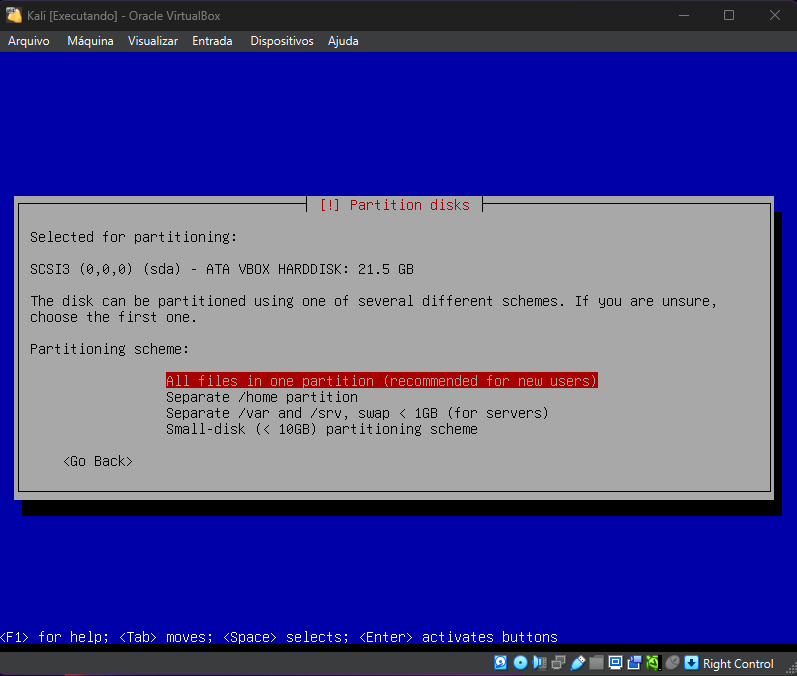
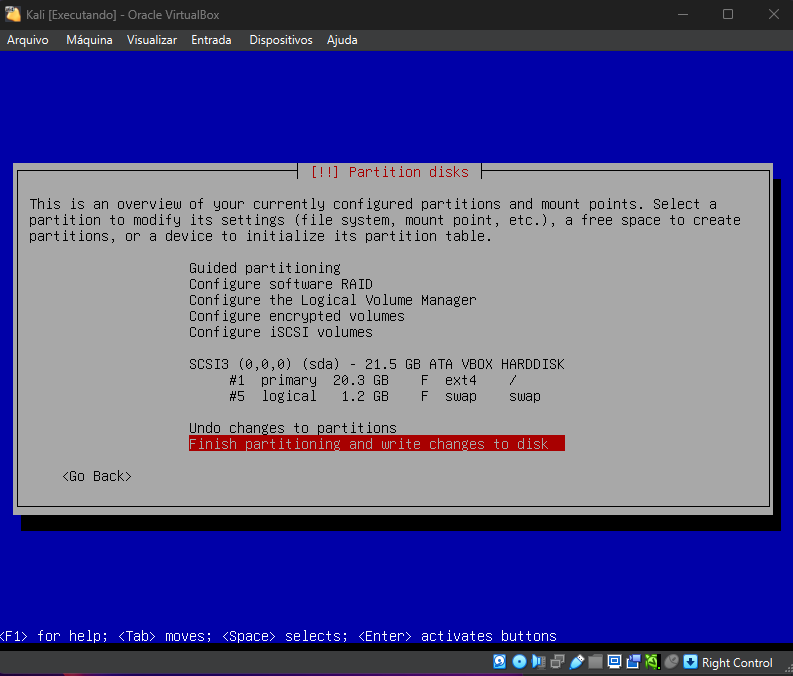
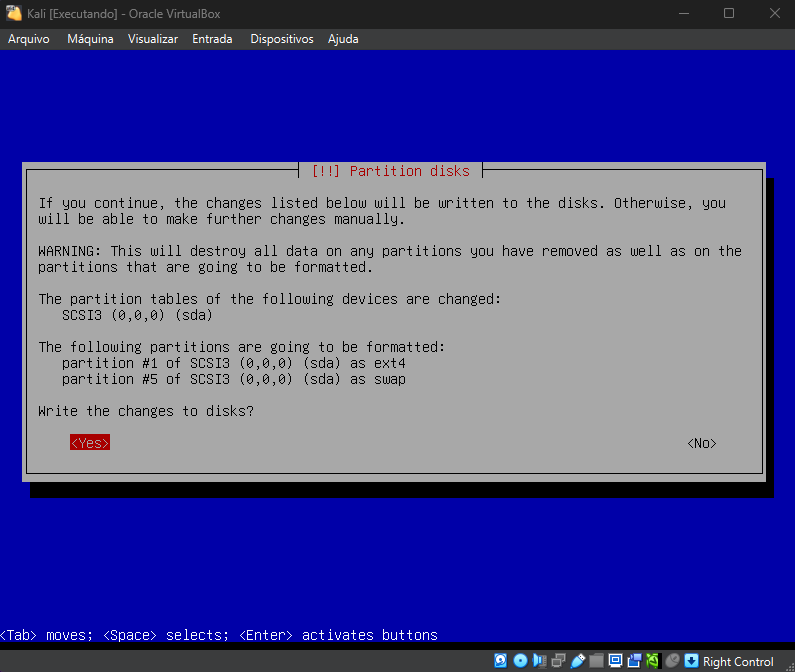
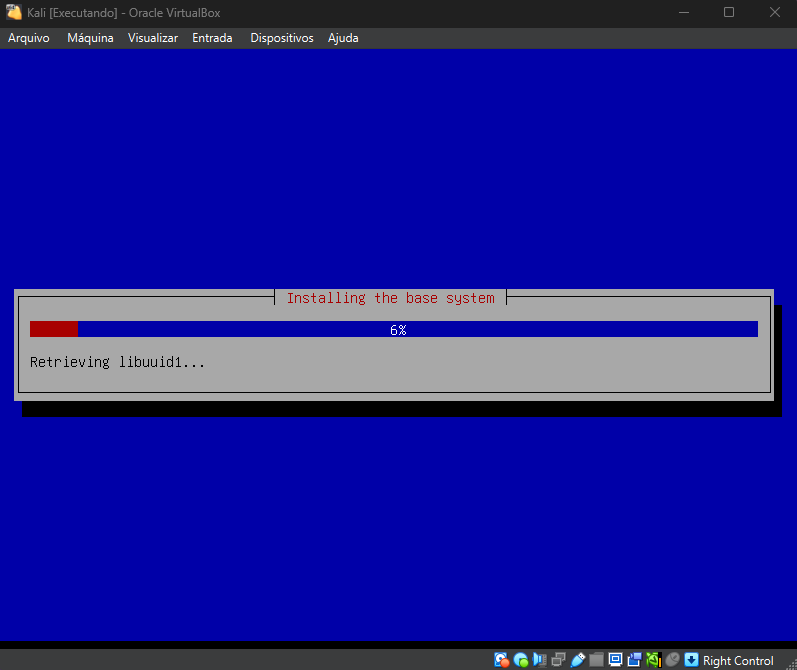
A check box for the installation is gonna appear, in my case I unchecked extra tools, making it the most simple and lightest possible. Also, I can install of the tools that I need afterwards manually as part of the learning process.
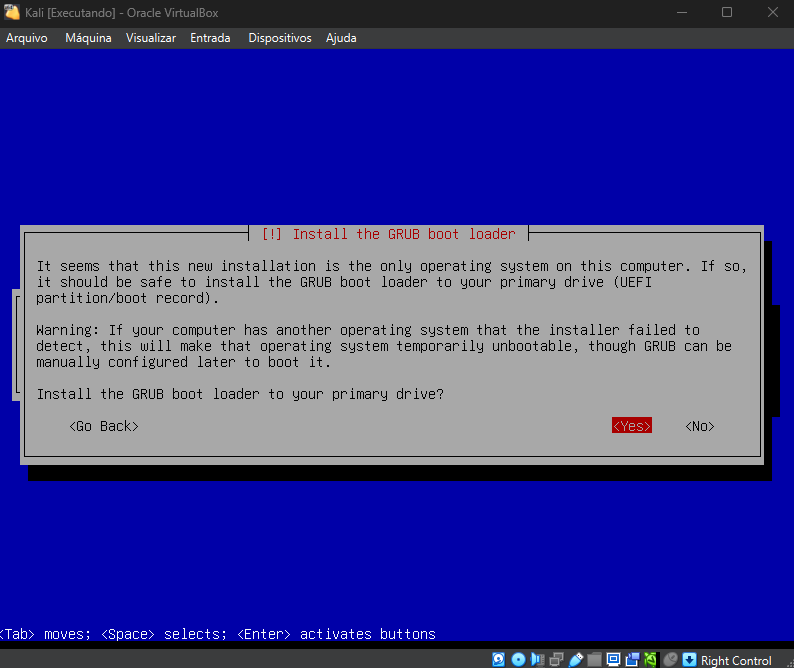
Remember to install the GRUB boot loader
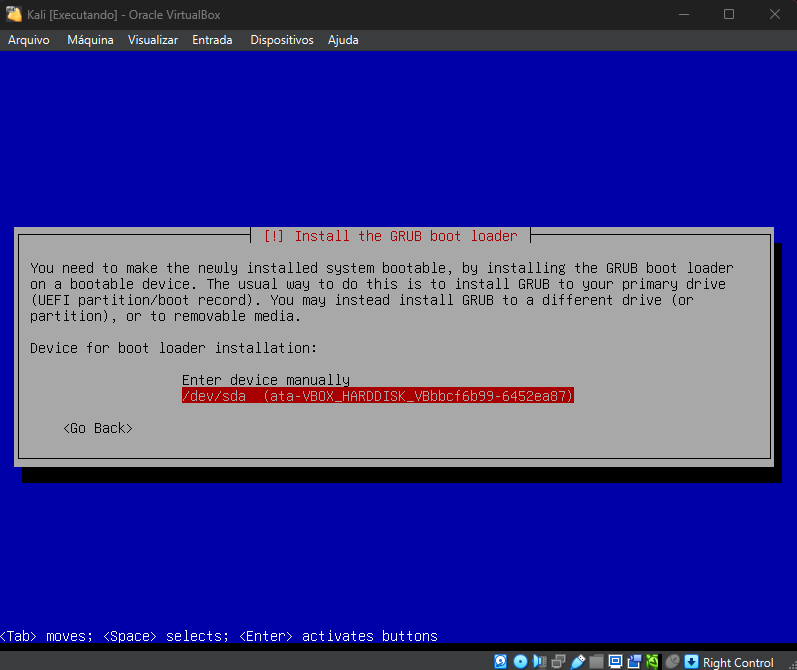
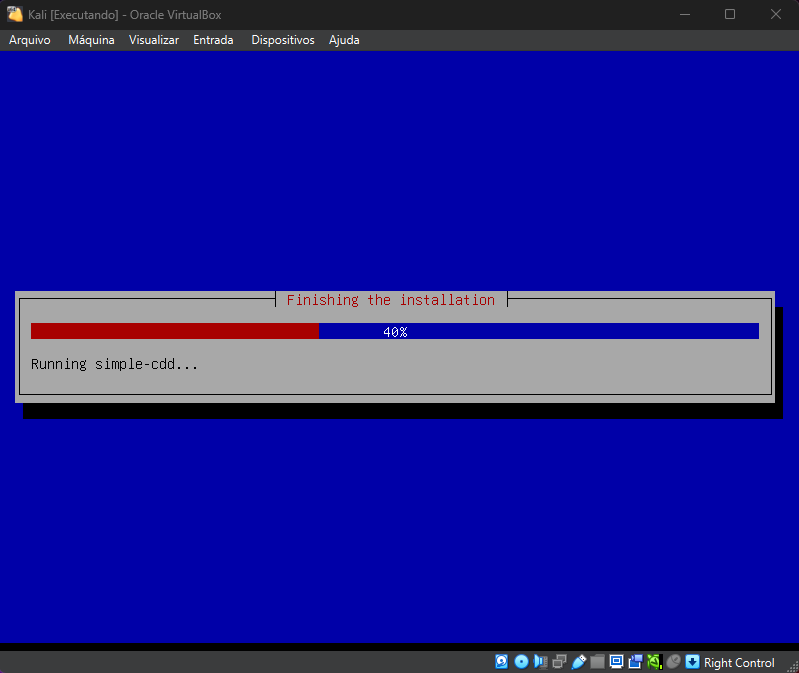
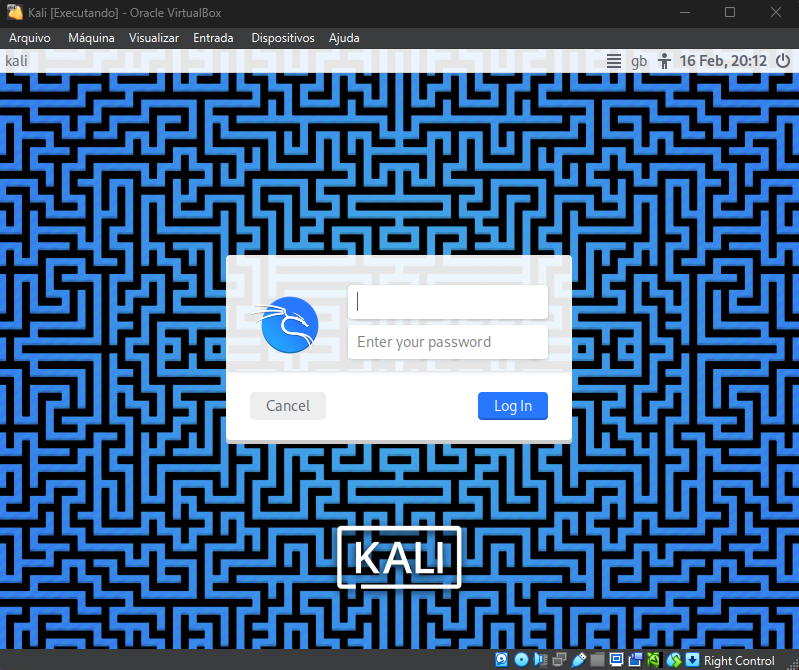
Voilà!! Now just enter your credentials to have access and start using Kali.
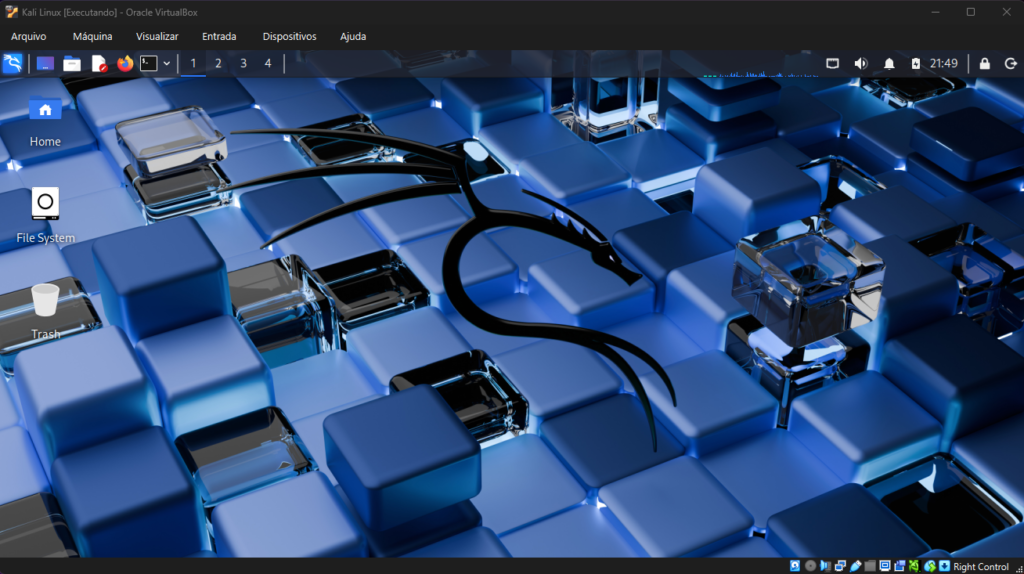
***VERY IMPORTANT > Don’t forget to disable the ISO image, otherwise Kali installer will initialise every time you start the VM.
// Thank you guys, that was it for today. I hope you enjoyed the journey as I did. ;}
If you like this content, don’t lose the chance to check out some books from Amazon using my link:
“Linux Basics for Hackers: Getting Started with Networking, Scripting, and Security in Kali”, access the Amazon link: https://amzn.to/4rwXiT2
“Comptia Linux+ Study Guide: Exam Xk0-006”, access the Amazon link: https://amzn.to/4kOXIll
“How Linux Works, 3rd Edition: What Every Superuser Should Know”, access the Amazon link: https://amzn.to/4akauES


Pingback: Identifying a Phishing Email – Cybearshield